Phishing That Slips Past Link Checks: QR Codes, Fake Logins and Hidden Links
Most phishing emails have one goal: get someone to type their Microsoft 365 password into a fake login page. Once the attacker has it (and often the MFA code too, captured live), they’re inside the mailbox, and that’s where business email compromise starts.
Email filters have got good at spotting obviously bad links. So attackers have stopped sending obvious links. This article covers the tricks they use to hide them, and how the layer we deploy alongside Microsoft 365 still finds them.
The hiding tricks
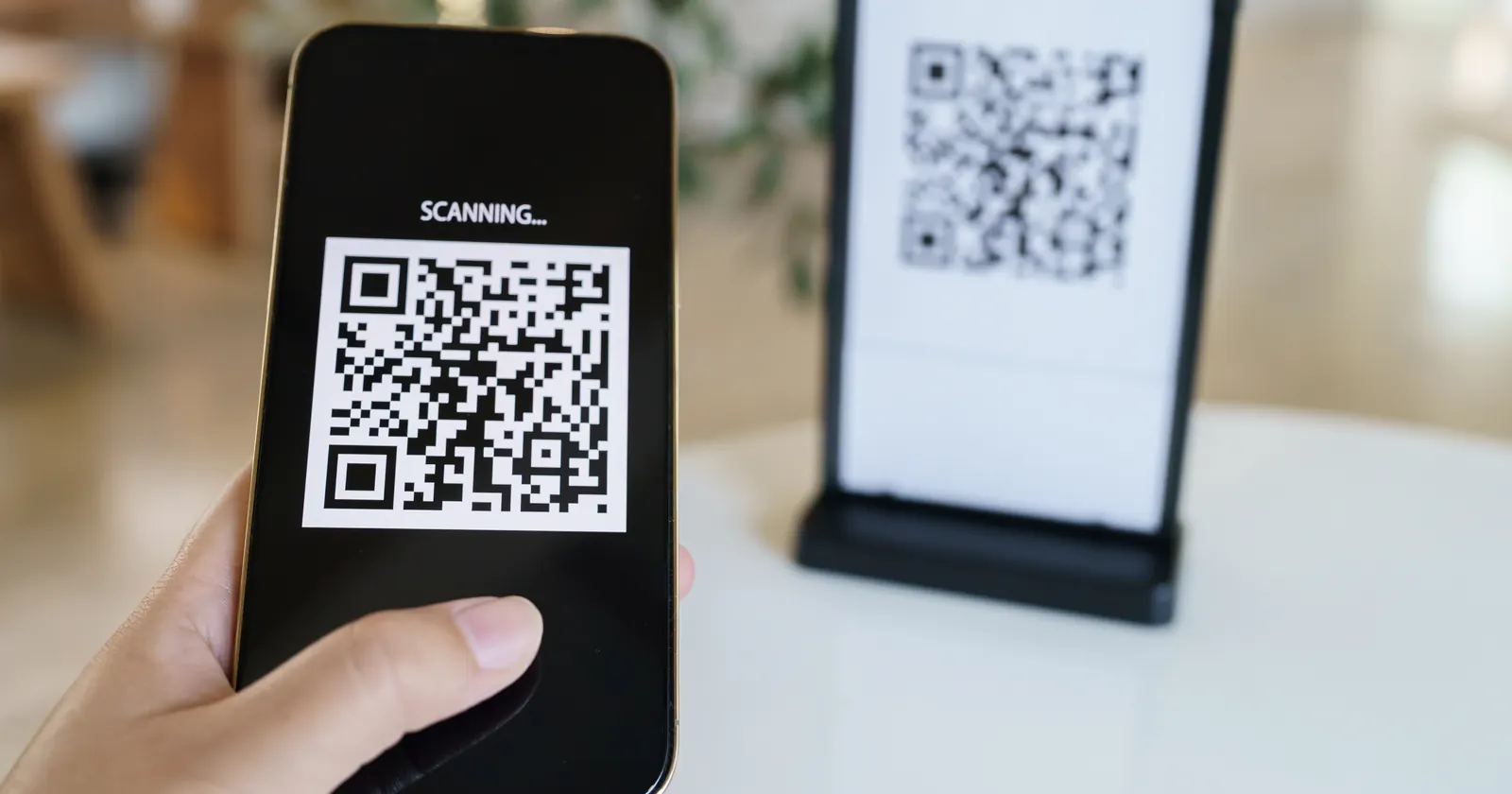
QR codes
Your payslip for November is ready. Scan the code below to view it securely.
The link is inside an image, not in the email text, so a filter that only reads text sees nothing. The victim scans it with a personal phone, which isn’t covered by your company’s web filtering, and lands on a fake Microsoft login page. QR phishing has grown fast because it moves the attack onto a device you don’t manage.
Links inside attachments
The email itself is clean: “Please find the signed agreement attached.” The PDF or Word document contains the link, sometimes styled as a big “View Document” button. Some attachments are HTML files that build the fake login page right on the victim’s computer, with no website to check at all.
Trusted hosting
The link goes to a real SharePoint, OneDrive, Google Docs, Dropbox or DocuSign page. Those domains have excellent reputations, so they pass reputation checks. The shared file then contains the real phishing link, one step further along.
Redirect chains
The link goes through a legitimate URL shortener, then a marketing click-tracker, then a compromised WordPress site, and finally to the phishing page. Each hop on its own looks fine.
Pages that change after delivery
A page can be completely harmless when the email arrives and is first checked, then switched to a phishing page an hour later. Others only show the phishing page to visitors from Australia, or only on mobile, or only after a CAPTCHA that automated scanners can’t solve.
How modern detection finds them
The common thread is that a simple “is this link on a bad list?” check is too easy to dodge. The layer we deploy treats every link and file as something to investigate.
It reads everything, including images
- QR codes in the email body, in embedded images and inside attachments are decoded, and the link inside is analysed like any other link.
- Text in images and scanned PDFs is read using optical character recognition. Attackers often put the whole message in an image to dodge text analysis, and that stops working.
- Attachments are opened up. Links inside PDFs and Office documents are pulled out, HTML attachments are examined for code that builds login pages, and macros and other risky content are flagged.
It follows links all the way
Links are followed through every redirect to the final destination, not just the first hop. Trusted file-sharing pages are followed through to what they actually contain.
It looks at the page the way a person would
This is the part that catches brand-new phishing pages nobody has reported yet. The final page is rendered and examined visually:
- Does it look like a Microsoft, Google, bank, ATO, myGov or courier login page?
- Is it hosted on a domain that has nothing to do with that brand?
- Does it ask for a password or card details?
A page that looks exactly like a Microsoft 365 sign-in but lives on a three-day-old domain is phishing, whether or not it’s on any blocklist yet.
It weighs the email around the link
The link is only part of the picture. Detection also considers:
- Is this the first time the sender has ever emailed your business?
- Does the email claim to come from a brand (Microsoft, DocuSign, your bank) while being sent from an unrelated domain?
- Is the language pushing urgency (“your mailbox will be deleted today”)?
- Is the link’s domain newly registered, or a lookalike of a well-known brand?
The same signals we cover in scam emails with no link or attachment apply here too.
It can act after delivery
Because the layer is connected to your mailboxes through the Microsoft 365 or Google Workspace API, a link that turns malicious after the email arrived isn’t a lost cause. When a new detection matches, the email can be pulled out of every inbox that received it, even hours later.
Your other defences still matter
Even with strong email detection, plan for a phishing link getting through. That’s what defence in depth means:
- Phishing-resistant MFA. Passkeys, FIDO2 security keys or Windows Hello can’t be captured by a fake login page the way SMS codes and app approvals can.
- Web and DNS filtering. If someone does click, DNS filtering can block the phishing site before the page loads, as long as the device is covered.
- Conditional access. Restrict where and from which devices people can sign in to Microsoft 365, so a stolen password alone isn’t enough.
- Staff awareness. Teach people that a QR code in an email is a red flag, especially one asking them to sign in. Our free phishing awareness quiz is a good place to start.
How we help
We run this layer as part of our cyber security services, alongside the web filtering, MFA and Microsoft 365 hardening that catch what gets past it. If you’d like us to look at what’s reaching your staff’s inboxes today, get in touch.